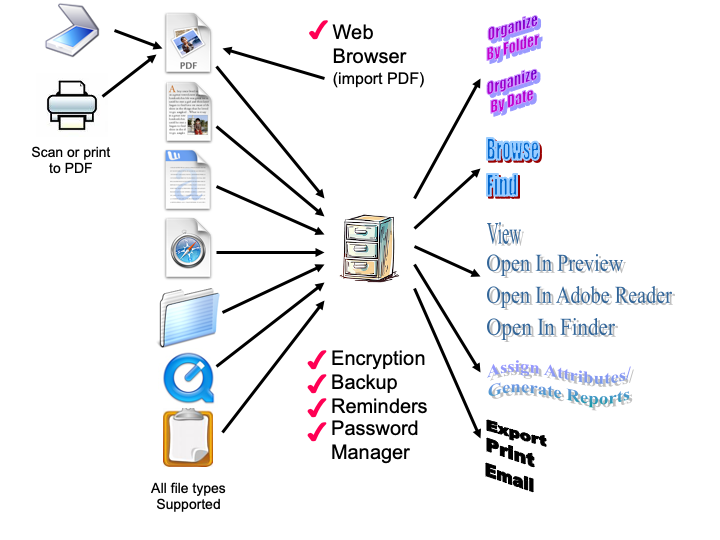
Records Wizard is a secure file manager that allows you to collect important records (such as bank statements, credit card statements, investment records, bills, or receipts) or PDFs, in a database and allow for:
- easy addition of new files (importing),
- organization of files in hierarchical folders,
- optional organization of files by date,
- easy access to existing files (browsing, finding, smart folders exporting, printing)
- the ability to associate notes with files or folders,
- the ability to associate attributes with files (e.g., cost) and produce reports based on those attributes,
- reminders to download or scan in recurring records such as financial statements, (including an integrated website password manager with advanced features to make it easy for you to go to websites to download the records),
- encrypting the database, and
- automatic or manual backup of the database.
Think of it as a replacement for a file cabinet but with easier filing and retrieval. You can also use it just to keep any files together...especially useful for PDFs.
A trend today with financial institutions and utilities is to stop sending paper copies of bills and statements, and instead make them available online. However, this information is not available online forever, and is inconvenient to access across all of your financial institutions because you have to login to multiple web sites. If you wanted to review all your statements for December of 2013, you would have a lot of work to do. Though the online statements are often available for downloading, you have problem of organizing the information. Records Wizard addresses this problem by providing a database customized for storing and accessing such records in a single database file. If you still get some statements only in paper form and you have a scanner, then you might find it more convenient to scan the statements and store them in Records Wizard rather than maintaining a paper file system. You could also scan and organize receipts, instructions, etc. Also, MacOS X allows you to print anything to PDF, which you could then save in Records Wizard.
Even though Records Wizard was motivated by the problem of managing large amounts of bills and statements, it could be used to organize any files on your computer.
Complete documentation for Records Wizard is available as help within the application.
Macintosh Requirements
Records Wizard runs on Mac Os 10.12.2+.
It is required that the keyboard shortcut on your system to paste is Command-V, the common default.
Frequently Asked Questions
- When I try to run the program the system says it is from an unauthorized developer. How can I run the application? After you have moved it to the Applications folder, right-click or control-click the application. Ignore any message to trash the application (which may see on macOS 10.15+). If you see an “Open” button, click it. If not, click “Cancel”, then right- (or control-) click the application AGAIN. This time you should see the “Open” button. Click it and you will be asked again if you want to run the application. After you run the application once via this “Open” button, you will not be asked again and you can launch the application in any manner. If you are running macOS 15+, follow the instructions HERE.
- How does Records Wizard differ from your earlier application Records Master? Records Wizard is a modern 64-bit application that runs on Mac OS 10.12+, whereas Records Master is a 32 bit application that ran on Mac OS 10.5+. Mac OS 10.15+ will not run 32 bit applications.
- I have already purchased Records Master, do I have to pay again for Records Wizard? Because Records Wizard is a re-write of the application and will persist after Apple stops running 32-bit applications, there is a charge to purchase Records Wizard. Of course, you can continue running Records Master on systems prior to Mac OS 10.15.
- Will Records Wizard use my saved preferences from Records Master? Yes.
- Why aren't my userids and passwords pasting? If you are running on 10.14 or later, you must re-authorize Records Wizard to control your computer when installing
or after upgrading it.
In System Preferences->Security & Privacy-> Accessibility (pre-Mac OS 13) or System Settings->Privacy & Security-> Accessibility (Mac OS 13+) you should
see Records Wizard shown. Even if it is checked,
you must DELETE it and then click the + to add it again. You will have to click on the lock icon and enter your
password before doing so. If for some reason Records Wizard does not appear there, you will need to click the plus sign and add Recpords Wizard, which should be in your
Applications folder.
- Where is Help available? Choose "Records Wizard Help" or "Quick Reference" under the "Help" menu . If you need to contact the author to report a bug or ask for help, please do so only by using the "Email The Author" function under the "Records Wizard" menu. This will provide me with debugging info that allows me to better answer your question.
Release Notes
1.0 - Initial release.
1.1 - Bug fixes:
- Fixed bug with automatic database backup.
- Fixed bug relating to having multiple databases open at the same time.
1.2 - Improvements and bug fixes:
- The height of the attributes panel can now be changed by dragging.
- The attributes show/hide button now acts as a toggle button.
- Added 32 characters as a length for generated passwords.
- Improved performance.
- Improved help.
- Fixed bug in the backup mechanism.
- Fixed bug in type speed slider.
2.0 - Enhancements:
- Added support for Dark Mode
- Improved workaround for macOS 10.14+ Accessibility authorization.
2.1 - Enhancement:
- If an imported filename begins with a date, that date is
assumed to the an ending date.
3.0 - Enhancements and bug fixes:
- Updated internal index format.
- Improved handing of Import Folder not found warning.
- Improved look in Dark Mode.
- Improved Button Select dialog.
- Improved Attributes Panel layout.
- Improved Help in the Preferences.
- Fixed bug with non-standard characters in file names.
- Fixed bugs regarding the Last Import folder.
- Fixed bug renaming files in Smart Folders.
4.0 - Added support for Touch Bar in MacBooks so-equipped.
4.1 - Added preference to have dates at the beginning of filenames ignored when importing.
5.0 - Enhancements and bug fixes:
- Universal application, running natively on Apple Silicon.
- Improved security of encrypted databases.
- Improved compatibility of cvs output that contains non-standard characters.
- Browser window for displaying websites is now sized just smaller than the database window.
- Fixed bugs in the backup function.
5.1 - Enhancements and bug fix:
- Improved help available by hovering in the attributes panel.
- Fixed a bug in specifying yearly reminders.
6.0 - Enhancements and bug fix:
- Added touch bar support when viewing the Preferences.
- Added button in Backup Preferences to remove the reference to
the backup folder.
- Improved error checking for the case when the backup folder is
renamed, moved, or deleted.
- Fixed a bug in manually backing up a database.
6.2 - Fixed bug in backing up database when the path to the backup folder contained certain special characters.
6.3 - Bug fixes:
- Fixed bug with cancelling out of password entry.
- Fixed bug with folders that have custom reminder text.
7.0 - Enhancements and bug fix:
- Added enhance image mode.
- Updated icon for Big Sur.
- Improved Touch Bar buttons.
- Improved support for Dark Mode
- Improved backup status dialog
- Added ability to produce debugging information if you do not
use a mail application.
- Updated the Help information to better reflect the current
user interface.
- Fixed bug in saving history.
7.1 - Enhancements and bug fixes:
- Dates for files entered in the attributes panel and Find
function now default to the current year if you do not specify
it, and you can specify quarter designations.
- Improved error checking in the Find function.
- Updated icons.
- Fixed miscellaneous bugs.
8.0 - Enhancements and bug fixes:
- Many many improvements to Find, including holding the CONTROL
key to stop long searches of file contents.
- Many improvements to the AutoFile detection of starting and
ending dates in imported files.
- Added support for date formats like Jun 12/22
- Fixed typo in Preferences.
- Corrected help information about the AutoFile feature.
- Universal application, running natively on Apple Silicon.
- Updated for Ventura (Mac OS 13).
- Updated Icon
- Fixed miscellaneous bugs.
8.2 - Bug Fixes:
- Fixed scroll bar glitches in file display.
- Fixed bugs with AutoFile.
8.3 - Enhancements:
- With AutoFile, a date starting the filename will be ignored if
dates are found in the text of the file with the folder's
AutoFile specifications.
- Improved feedback when specifying AutoFile date matches.
- Added an "Apply" button to apply AutoFile-found dates to the
current file.
8.4 - Enhancements and bug fixes:
- Improved performance of notifications.
- Improved compatibility with dark mode.
- Improved error feedback.
- Clarified that you must type return or tab after changing dates in the
File Attributes Panel.
- Removed the restriction that you cannot drag files into the Unfiled
folder.
- Fixed miscellaneous bugs.
9.0 - Added support for importing from Paperless Libraries--see the Paperless tab in the Preferences.
10.0 - Enhancements and bug fixes:
- Added option to have the Attributes be a moveable panel,
rather than at the bottom of the browser.
- Reorganized all database-specific options under the Database menu.
- Re-wrote help to clarify menu structure and use of Attributes.
- Improved compatibility with macOS 26 Tahoe.
- Fixed miscellaneous bugs.
Records Wizard Copyright © 2019-2026 John Woodward. All rights reserved.
You may distribute Records Wizard unmodified via any media, as long as you keep it together with its Read Me file.